
How to create a consistent AI model for your brand
Build a recognisable AI model with Model Creator: write a brief, choose features, check every angle and keep the look consistent across your catalogue.
ModelPhotoAI6 min read
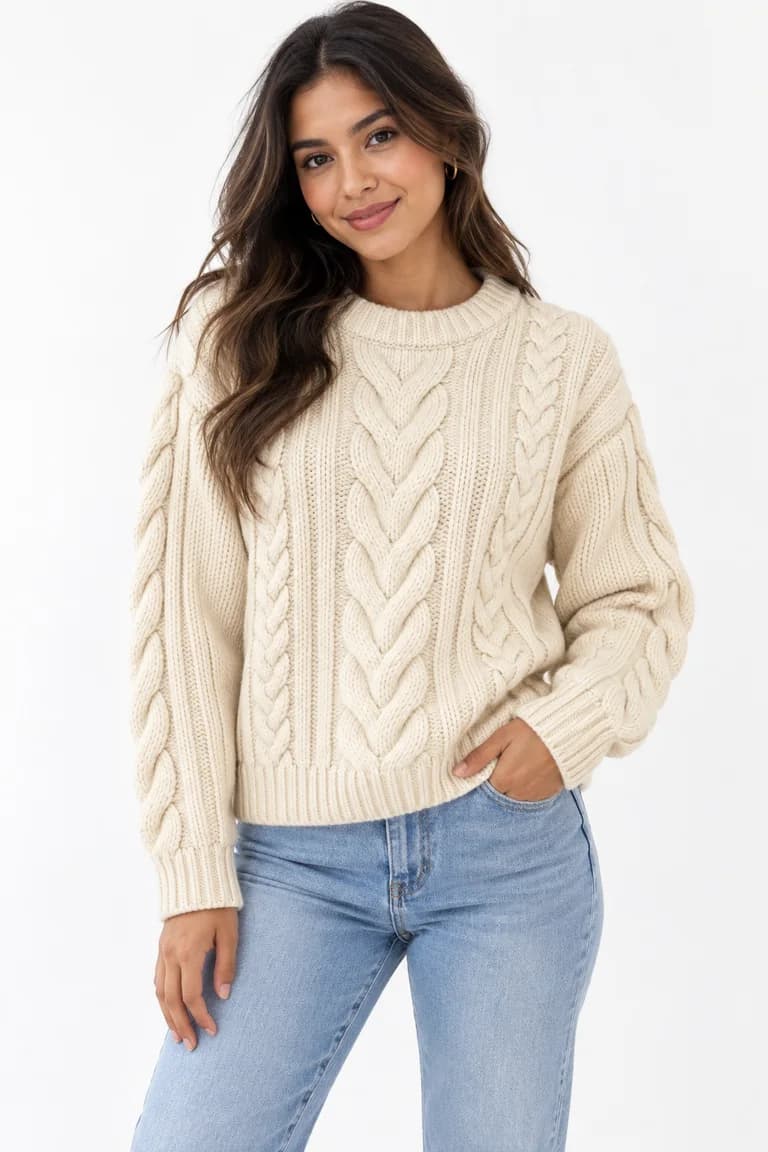
When every product in a catalogue is shown on a different face, the store feels like a collection of unrelated listings. When the same person, or a small, deliberate cast, wears everything, the catalogue starts to look like a brand. Shoppers can compare products more easily, and your photos become recognisable at a glance.
Model Creator is the ModelPhotoAI tool for building that person. This guide covers how to plan a brand model, how to choose features that stay recognisable, how to check the reference shots, and how to keep the look steady once you start dressing the model in your products. It also covers the limits: an AI model is consistent, not identical, from one image to the next.
What Model Creator does
You describe a model (age range from early 20s to 50s+, ethnicity, body type, hair and more), choose which shots you want (front, side, three-quarter and full body), and generate them. Each request costs 2 credits, however many shots it includes, and if the whole request fails it is refunded automatically. You then save the model and reuse it: in Dress Model you can pick one of your own models instead of a preset one, and each Dress Model image costs 8 credits.
Write a brief before you generate
Most inconsistency starts before the first image: a model built by clicking options until something looks good is hard to recreate or explain to anyone else. Write a short brief first, the same way you would for a casting.
| Question | Example answer |
|---|---|
| Who is the customer? | Women in their 30s who buy everyday knitwear and basics |
| What should the model communicate? | Relaxed, natural, approachable; not editorial |
| Age range and body type | Early 30s, average build |
| Hair | Medium-length wavy, dark brown, worn loose |
| What must never change | Face, hair color and length, skin tone |
| What can change per product | Pose, styling of other garments, background |
Save the brief with the exact options you selected in Model Creator. When you add a second model later, or someone else on your team generates images, they can work from the same document.
Choose features that stay recognisable
A recognisable model is one people can identify in a small product thumbnail, not only in a close-up. A few practical choices help:
- A clear hair silhouette. Hair length, color and style are visible even at thumbnail size. A defined bob, long straight hair or braids read more clearly than something in between.
- Neutral, not competing. The model should frame the product, not compete with it. Strong styling choices can make a garment harder to judge.
- A body type that fits the product. Show your clothes on the kind of body your customers have, and describe the fit in each listing so the photo does not set the wrong expectation about size.
- Fewer, firmer decisions. Each option you leave open is one more thing that can vary between generations.
Check the reference shots angle by angle
The shots Model Creator generates are the reference for everything that follows, so review them as carefully as product photos. Put the front, side, three-quarter and full-body shots side by side and check that they show the same person.
- Face: the shape of the eyes, nose, mouth and jawline should match between front and three-quarter views.
- Hair: same color, length and parting in every angle.
- Skin tone: consistent across shots, not lighter in one and warmer in another.
- Body: the full-body shot should match the body type in your brief; it is the best guide to proportions.
Keep the rest of the shoot consistent too
The model is only part of what makes a catalogue look coherent. In Dress Model you also choose the body size, gender, photo style and background for each generation. Decide these once and repeat them.
- Use the same orientation and size for a product category: portrait (1024x1536) for full-length clothing, square (1024x1024) where your store grid is square, landscape (1536x1024) for banners.
- Keep one background and one photo style per collection. Changing both at once makes the model look different even when she isn't.
- Write down the settings that worked, next to your brief, so the next batch matches the last.
One model or a small cast
A single model gives the strongest consistency. A small cast, two or three models with different age ranges or body types, can show customers how products look on different people, which matters if you sell a wide size range. If you build a cast, give each model a clear role (for example, one per line or per size range) and a written brief, so the variety looks intentional rather than random.
Review the catalogue as a whole
Every image is generated anew, so small changes happen: a slightly different jawline, a lighter hair color, a different expression. Once you have a batch, view the images together in a grid the way a customer would see your store, and remove the ones that look like someone else. Then check each image against its product photo as well; our guide on reviewing AI product photos before publishing has a checklist for color, shape, print, texture and hardware.
Limitations to be honest about
- Consistent is not identical. Expect some variation between images and leave room in the budget for a few re-runs.
- The model is fictional. Don't present her as a real person, and don't suggest that a real person wears or endorses your products.
- A reusable model does not unlock blocked categories; the FAQ lists what cannot be generated.
- Where you publish may have its own guidance on AI-generated people. Read it before you put a generated model in front of customers.
To see what Dress Model outputs look like before you start, the demo on our home page shows four real runs with their unedited results, and the Model Creator page explains the tool step by step.
Tools mentioned in this article
Try it with your own product photos
New accounts get 100 free credits, no card required: enough for 12 Dress Model images. Email signups verify their email before generating.
Related articles
Product photos
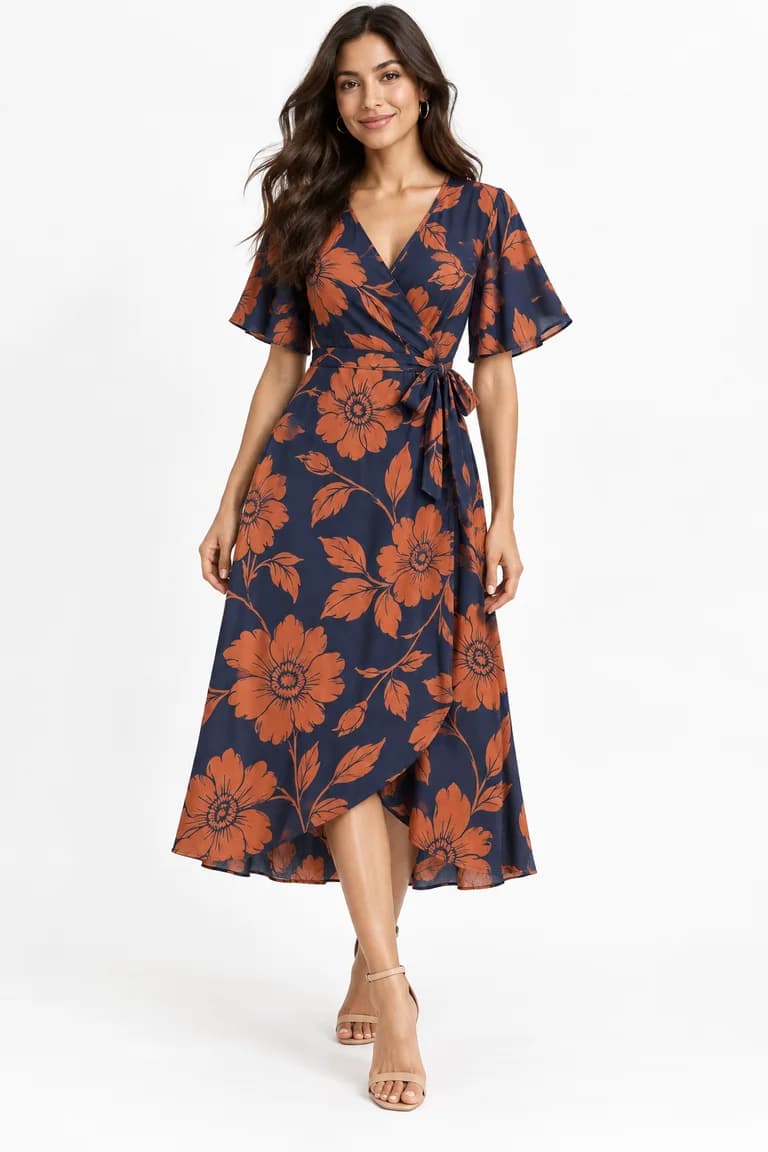
How to review AI product photos before you publish them
A practical checklist for AI on-model photos: compare color, shape, print scale, texture, hardware, hands and background against your product photo.
6 min read
Read article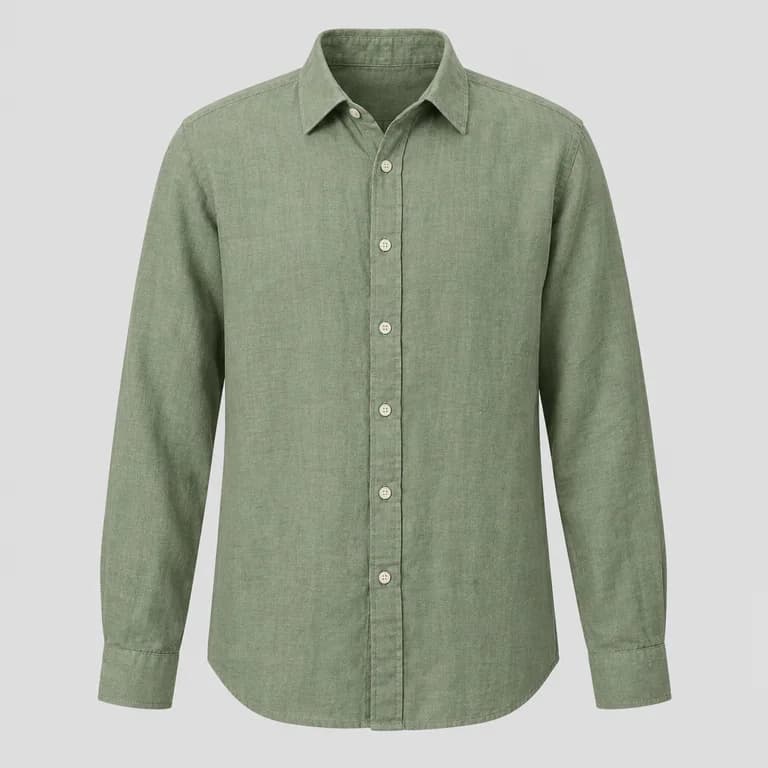
Product photos
How to photograph clothes for AI model photos: light, wrinkles and framing
How to shoot garment photos that AI can turn into accurate on-model images: soft light, a plain background, no wrinkles, the full garment and a sharp file.
6 min read
Read article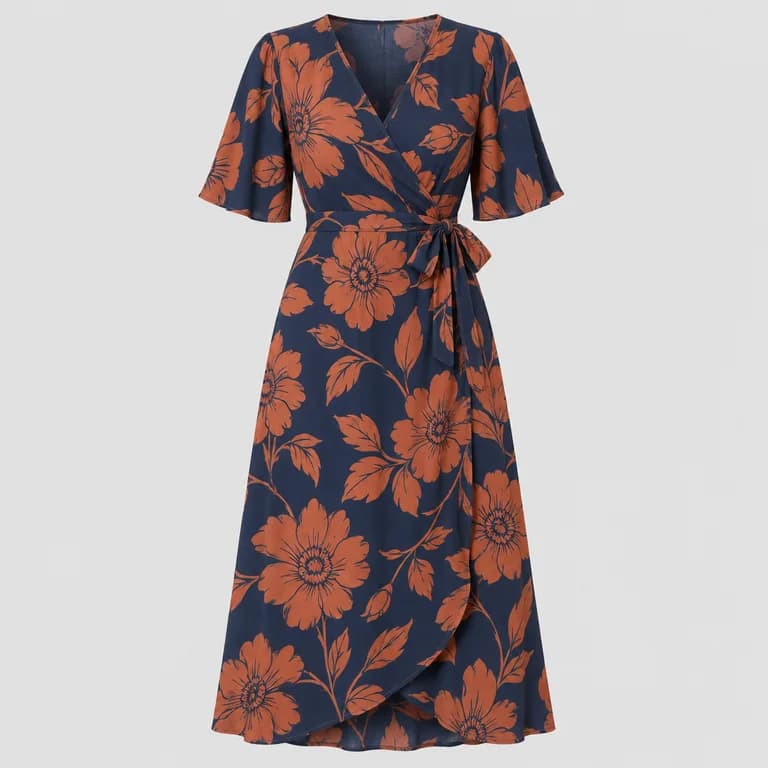
Product photos
Flat lay vs ghost mannequin vs hanger: which product photo works best for AI
Flat lay, ghost mannequin or hanger? What each clothing photo style shows an AI model generator, where each one fails, and which to use for each garment.
6 min read
Read article