
How to photograph clothes for AI model photos: light, wrinkles and framing
How to shoot garment photos that AI can turn into accurate on-model images: soft light, a plain background, no wrinkles, the full garment and a sharp file.
ModelPhotoAI6 min read
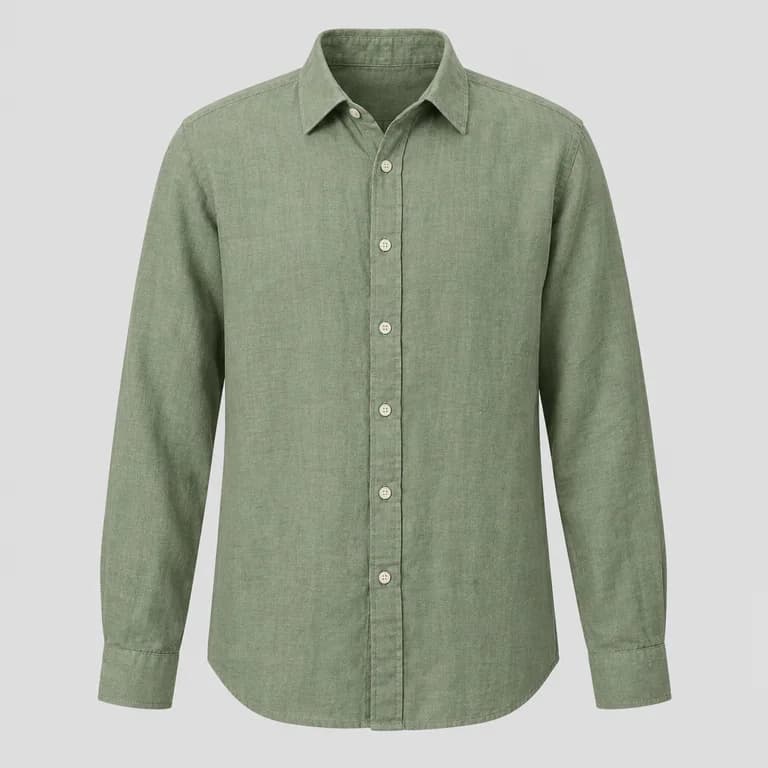
An AI tool that puts your garment on a model can only work with what your photo shows. It reads the color, the shape, the print and the texture from the pixels you upload. Anything the photo hides, it has to guess: a shadow becomes a darker shade, a fold becomes a seam, a cropped hem becomes a shorter dress. The better the input photo, the less the AI invents.
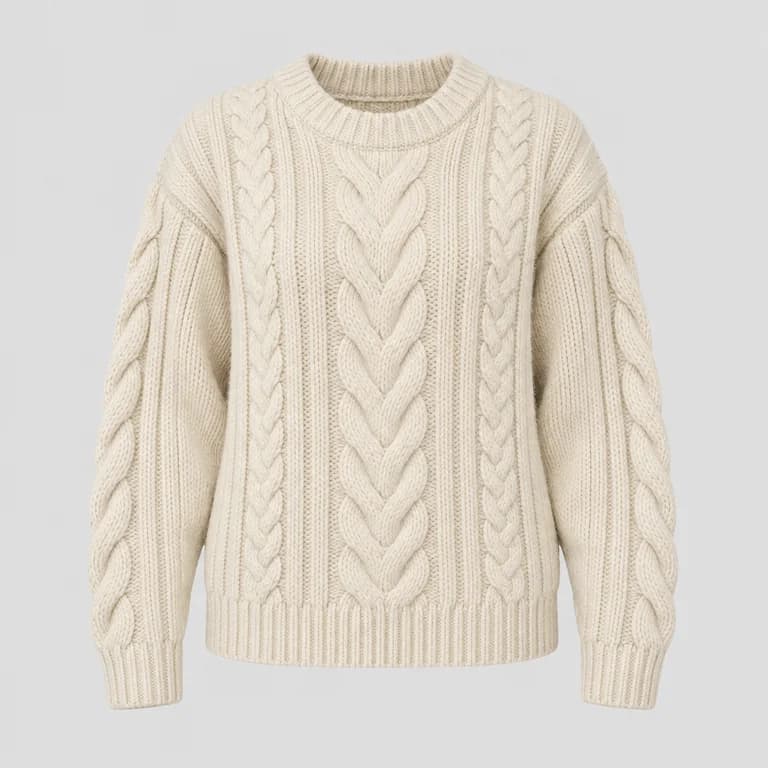
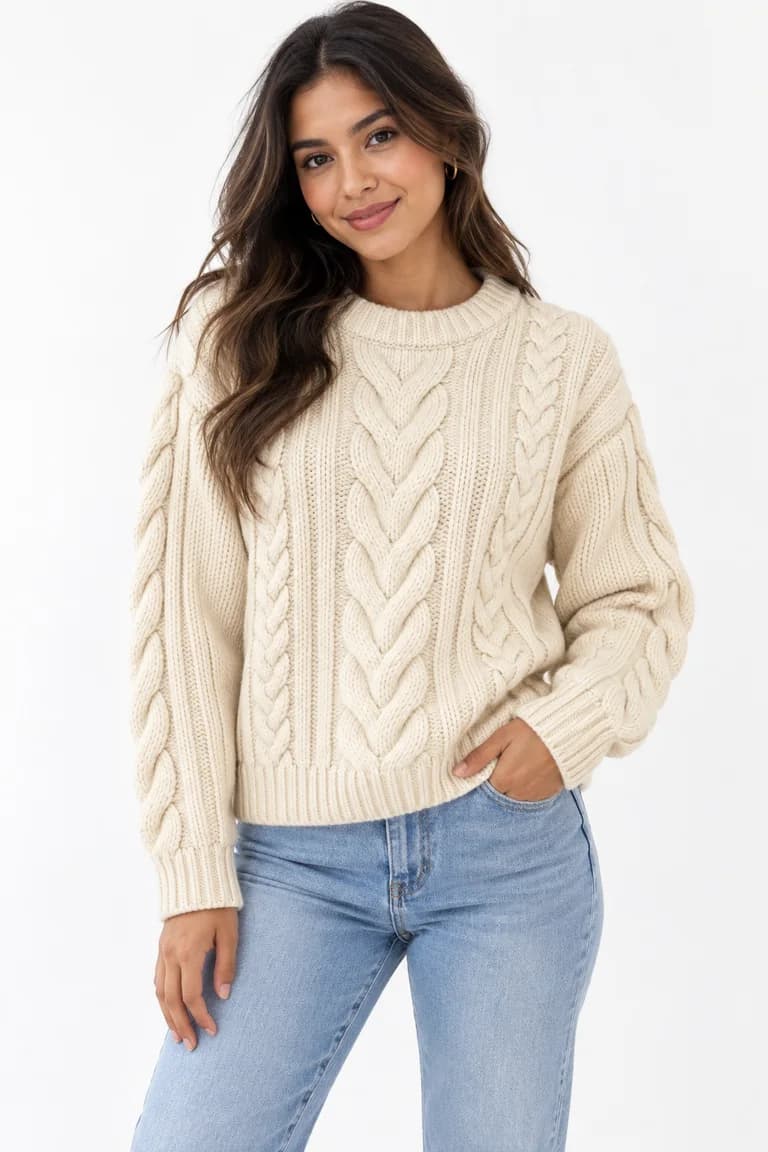
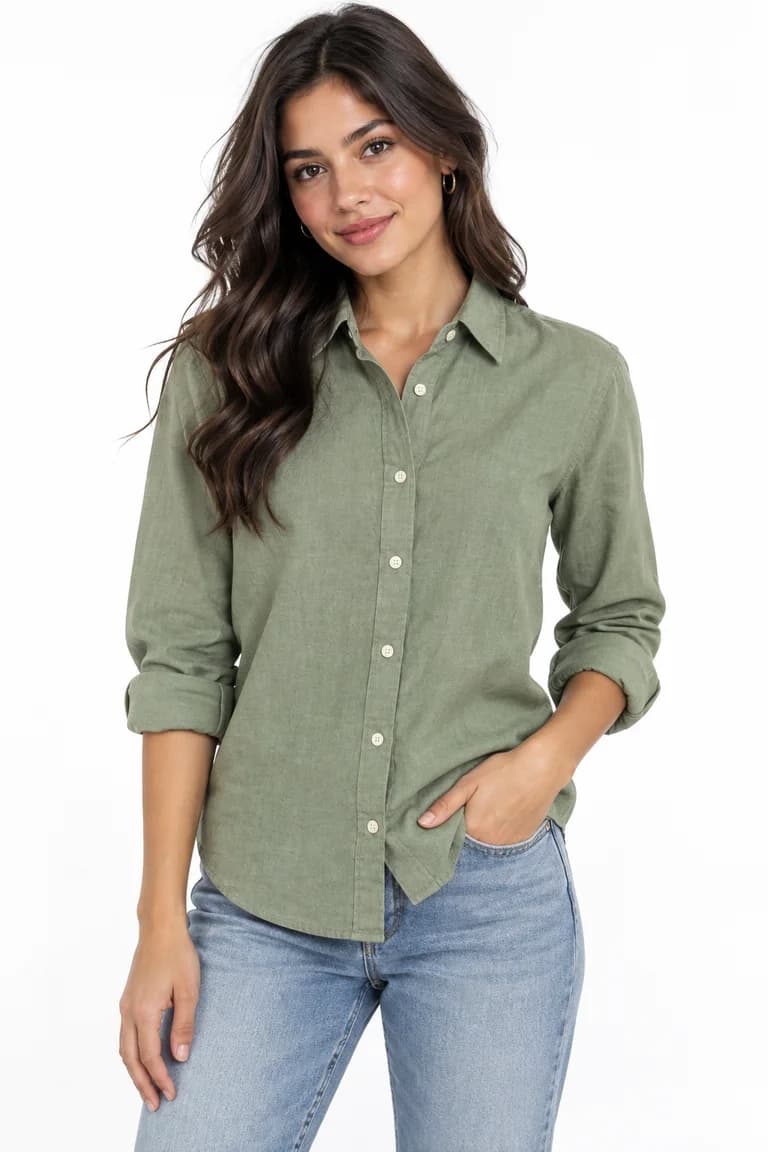
You do not need a studio for this. A window, a plain surface, a steamer and a phone are enough for most garments. This guide covers the six things that matter most, in the order you deal with them on the day. The examples come from the four real Dress Model runs in the demo on our home page, whose inputs are sample product photos created with AI for the demo.
1. Light: soft, even and from one direction
Light decides how accurately color and texture come through. The goal is soft light that reaches the whole garment evenly, without hard shadows or bright hot spots.
- Use daylight from a window, not direct sun. Bright sun on the garment creates hard shadows and burns out light fabrics. On a sunny day, hang a thin white curtain or shoot further from the window.
- Turn off the room lights. Mixing warm ceiling bulbs with cool daylight gives one side of the garment a different tint, and the AI cannot tell which tint is real.
- Avoid the phone flash. It flattens texture, adds a shiny patch on satin, leather and prints, and darkens the edges.
- Fill the dark side. A sheet of white cardboard on the side opposite the window bounces light into the shadows, which helps with knits, cables and ribbing.
Then check the extremes. A white shirt should still show its seams and buttons, not a blank white shape. A black sweater should still show its knit, not a black silhouette. If either one disappears, move closer to the window or further from it until the detail is back.
2. Background: plain and in contrast with the garment
The background tells the AI where the garment ends. A plain, matte surface with no pattern works best: a sheet of paper, a light wall, a smooth bedsheet without a print. Choose a background that contrasts with the garment, so the outline is clear: a light gray or beige surface for a white garment, a light surface for dark clothes.
Keep everything else out of the frame: other clothes, labels from a different product, props, your feet, the edge of a table. Anything in the photo is something the AI has to interpret, and you want it to interpret only your product.
3. Wrinkles and shape
Wrinkles in the input photo often end up as folds, creases or pleats in the result, because the AI cannot know they were not part of the design. Steam or iron the garment right before you shoot, and handle it as little as possible afterwards.
- Lay or hang the garment in its natural shape: shoulders level, sleeves straight, hem flat.
- Close buttons and zippers the way the garment is usually worn, and tie any belts or wraps.
- Remove price tags, stickers and pins that are not part of the product.
- If the fabric is very soft, smooth it from the center outwards with your hand, then step back and look again before you shoot.
4. Framing: the whole garment, straight on
Show the full garment in one photo, with a little empty space around it. A cropped sleeve, collar or hem means the AI has to decide how long it is, and it may decide differently from what you sell. Photograph one product per photo.
- Keep the camera parallel to the garment. For a flat lay, shoot from directly above; for a mannequin or hanger, shoot from the front at chest height. A tilted camera stretches the top or the bottom and changes the proportions.
- Show the front. The AI sees only one side. If the back has an important detail, such as an open back or a print, show it in your listing with a separate photo and do not expect the generated image to reproduce it.
- Do not zoom digitally. Move the phone closer instead; digital zoom only enlarges pixels.
5. Sharpness and file quality
A blurry or compressed photo loses exactly the details buyers look for: stitching, weave, small prints, buttons. Use the phone's main camera, tap the garment to focus, and hold the phone still or lean it on something. Look at the photo zoomed in before you move on.
Upload the original file. Photos sent through messaging apps or taken as screenshots are often resized and compressed along the way. Dress Model accepts JPG, PNG and WebP, and its results come out at 1024x1536, 1536x1024 or 1024x1024, so a sharp original gives the AI more to work with than the result needs.
6. Color you can trust
Do not apply filters or beauty modes, and turn off any automatic enhancement you can. Before uploading, hold the real garment next to the screen and compare. If the photo is noticeably warmer or cooler than the garment, fix the light and shoot again rather than adjusting the color by eye: the AI reproduces the color it sees, so a wrong input color becomes a wrong output color.
Checklist before you upload
| Check | What good looks like |
|---|---|
| Light | Soft daylight, no flash, no mixed bulbs, no burnt highlights or black shadows |
| Background | Plain, matte, in contrast with the garment, nothing else in frame |
| Wrinkles | Steamed or ironed, natural shape, tags and pins removed |
| Framing | Whole garment visible with some margin, camera straight on |
| Sharpness | In focus when zoomed in, original file, no screenshot |
| Color | Matches the real garment on screen, no filters |
What a good photo cannot fix
A good input reduces guessing; it does not remove it. The model, the pose, the other clothes and the background are generated, and the AI may still style the garment its own way: the shirt above, for example, came out with its sleeves rolled up. It cannot know the real size of the garment or what the back looks like.
A careful input photo is also the cheapest way to save credits: each Dress Model image costs 8 credits whether or not you end up using it, and the free signup gives you 100. Review every result before you publish with our checklist for AI product photos, and see what the tool does on the AI virtual try-on page. The categories that cannot be generated are listed in the FAQ.
Tools mentioned in this article
Try it with your own product photos
New accounts get 100 free credits, no card required: enough for 12 Dress Model images. Email signups verify their email before generating.
Related articles
Product photos
How to review AI product photos before you publish them
A practical checklist for AI on-model photos: compare color, shape, print scale, texture, hardware, hands and background against your product photo.
6 min read
Read article
Product photos
Flat lay vs ghost mannequin vs hanger: which product photo works best for AI
Flat lay, ghost mannequin or hanger? What each clothing photo style shows an AI model generator, where each one fails, and which to use for each garment.
6 min read
Read articleProduct photos
How to create a consistent AI model for your brand
Build a recognisable AI model with Model Creator: write a brief, choose features, check every angle and keep the look consistent across your catalogue.
6 min read
Read article