
How to review AI product photos before you publish them
A practical checklist for AI on-model photos: compare color, shape, print scale, texture, hardware, hands and background against your product photo.
ModelPhotoAI6 min read
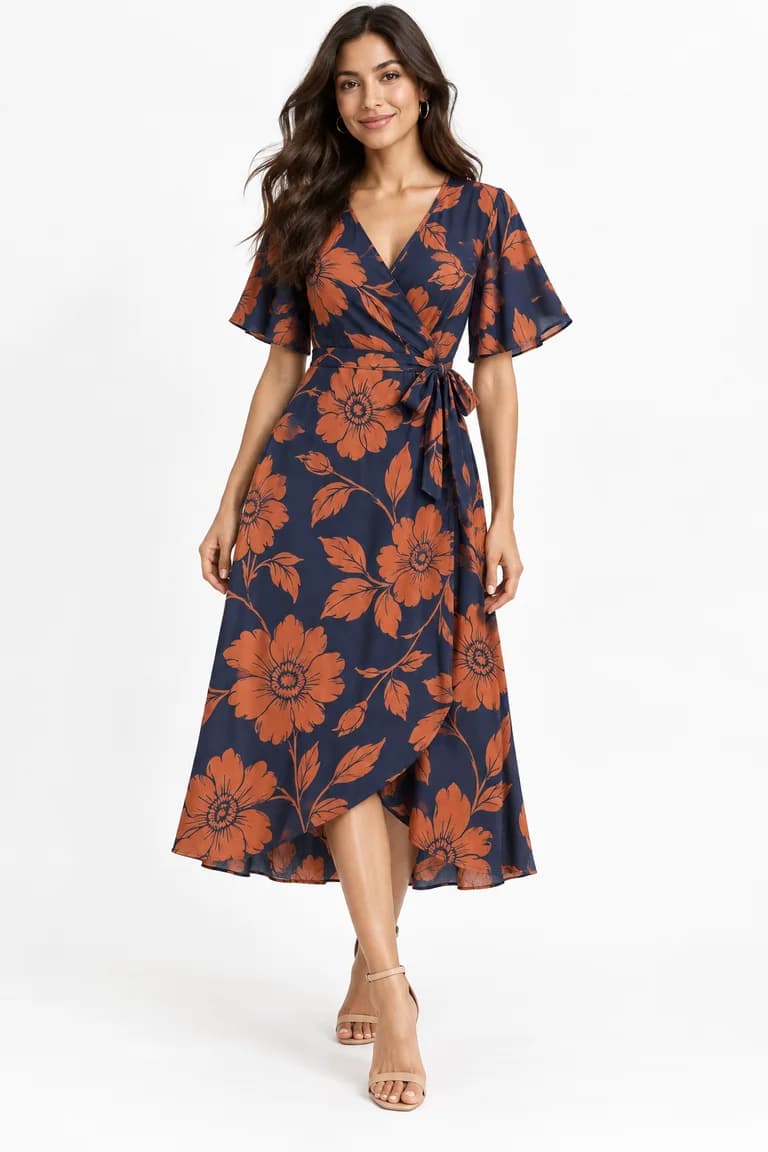
An AI on-model photo can look convincing at thumbnail size and still be wrong about the product. A buyer who receives a different shade, a shorter hem or a bag with different hardware has a good reason to send it back. Before you publish, compare every generated image against the original product photo, not against your memory of the product.
Here is a practical checklist. The examples are the four real Dress Model runs shown in the demo on our home page. The inputs are sample product photos created with AI for the demo, and the outputs are unedited. Each run cost 8 credits.
Before you start: put the photos side by side
- Open the product photo and the generated image at the same size, next to each other, and zoom in for details.
- Review on the screen most of your customers use (often a phone), and check color on a larger screen too.
- Check one thing at a time. A single pass looking for “anything wrong” misses small changes.
- Decide in advance what is a reject: a different color, a missing detail or a changed shape is a product error. A background you don't love is a reason to re-run, not an error.
1. Color
Color is the most common way a photo misrepresents a product, and it is easy to miss because generated images are usually well lit. Compare the main color in a flat, evenly lit area, not in a shadow or a highlight. Then check the secondary colors: trims, stitching, buttons and linings.
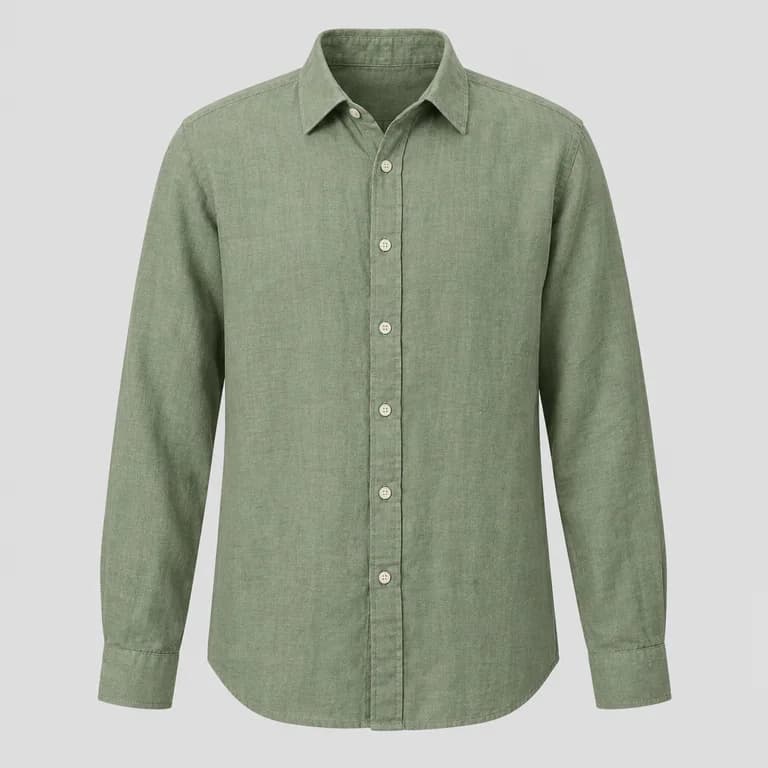
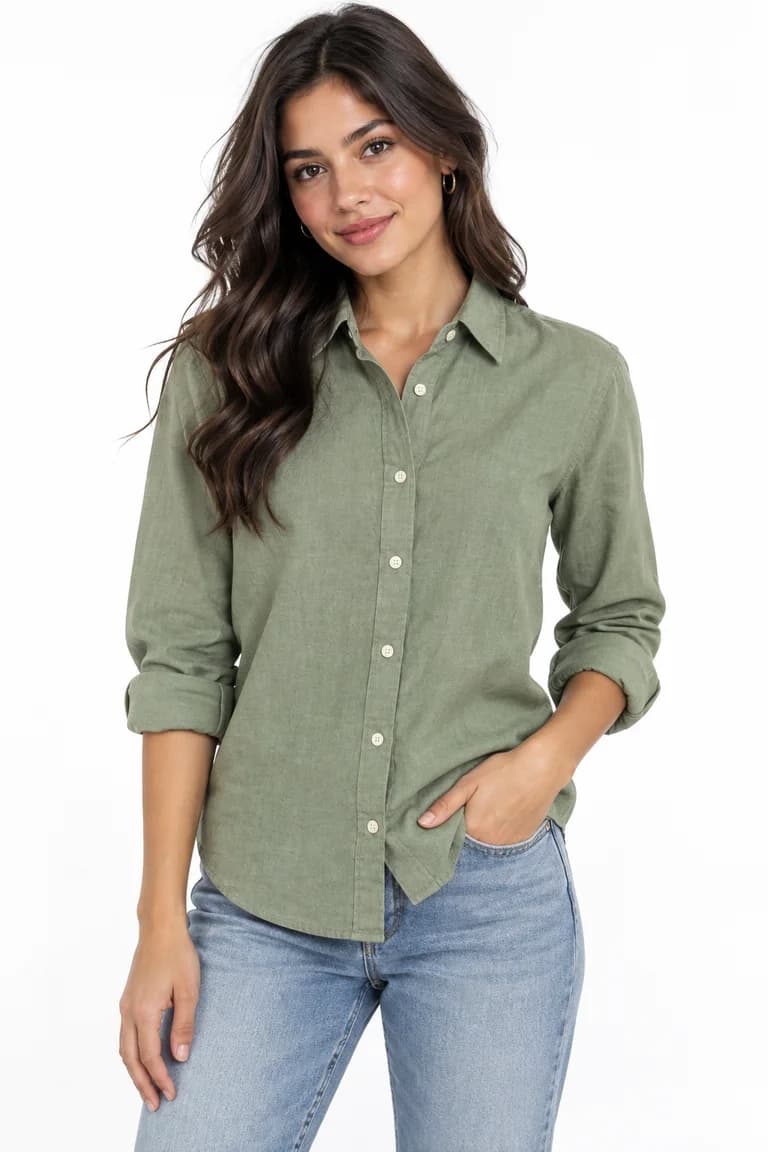
If the shade drifts, try another run before you reach for an editor. Correcting color by hand across a set of images is slow and tends to leave them inconsistent with each other.
2. Shape, length and construction
Next, check the silhouette: neckline, collar, sleeve length, hem length and shape, closures, pockets and seams. The AI dresses a body, so it may style the garment differently from how you sell it.
- Sleeves: in the shirt above, long sleeves came out rolled up. That is a styling choice, but if the cuff is a feature you sell, show it unrolled in another photo.
- Length: compare where the hem falls against the waist, knee or ankle, and give the real length in the listing.
- Closures: count the buttons, and check the zipper position, ties and wrap direction.
3. Print and pattern scale
Prints are where generated images drift most. The model redraws the print to follow folds and drape, so motifs can move, change size or multiply.
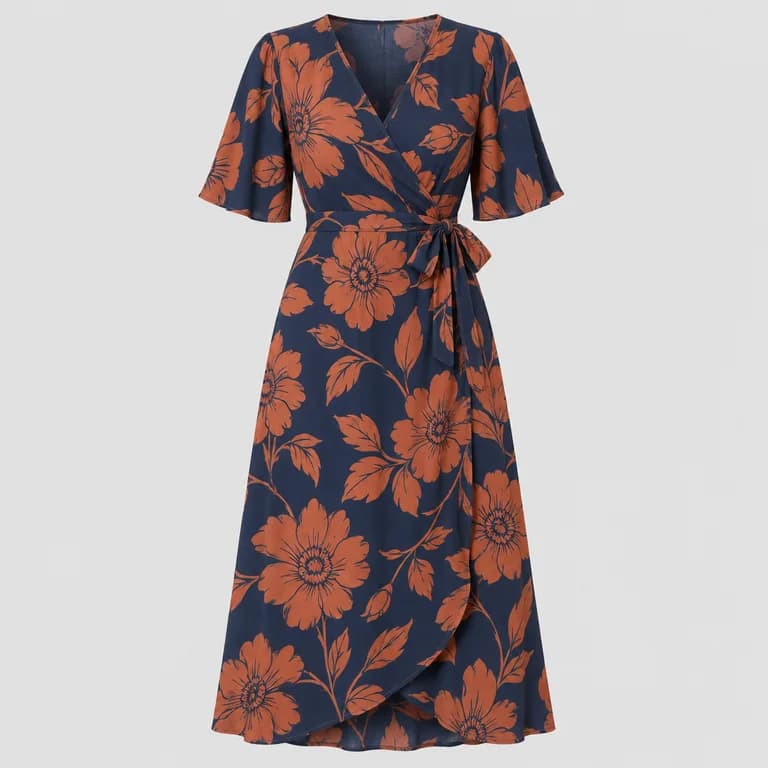
For prints, compare the motif size against the garment, the spacing between motifs, the background and motif colors, and the position of any placement print (a single large graphic or a logo). If a listing has several photos, make sure the print looks like the same fabric in all of them.
4. Texture and material
Knits, ribbing, denim wash, linen slub, leather grain and sheen tell a buyer what the product feels like. Check that the texture is there, at the right scale, and continuous across the garment.
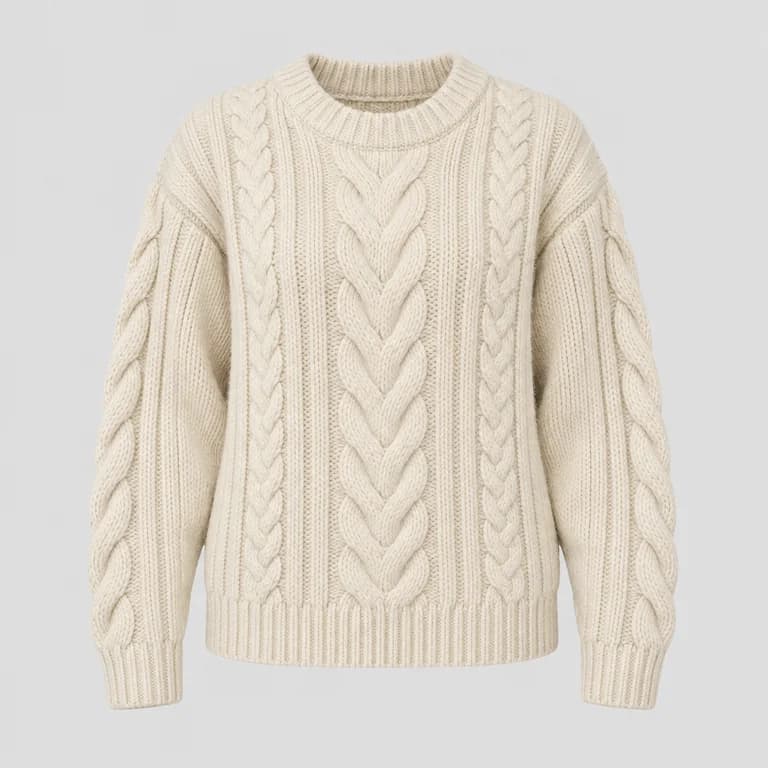
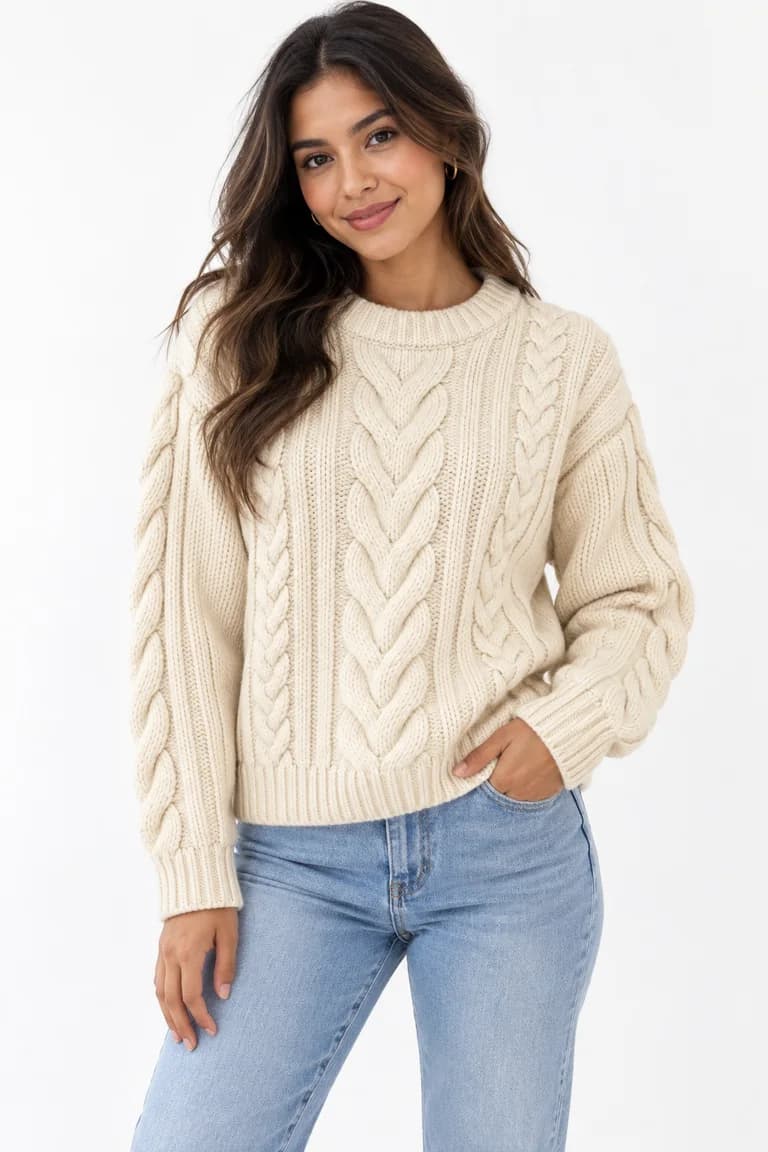
A common failure is texture that fades into a smooth surface in shadows or near seams. Zoom in on the sleeves and the hem, not only on the chest.
5. Hardware, logos and small details
Buckles, clasps, zippers, rivets, embroidery and logos are small in the frame and easy to change. Check their shape, their finish (gold, silver, matte) and their position.
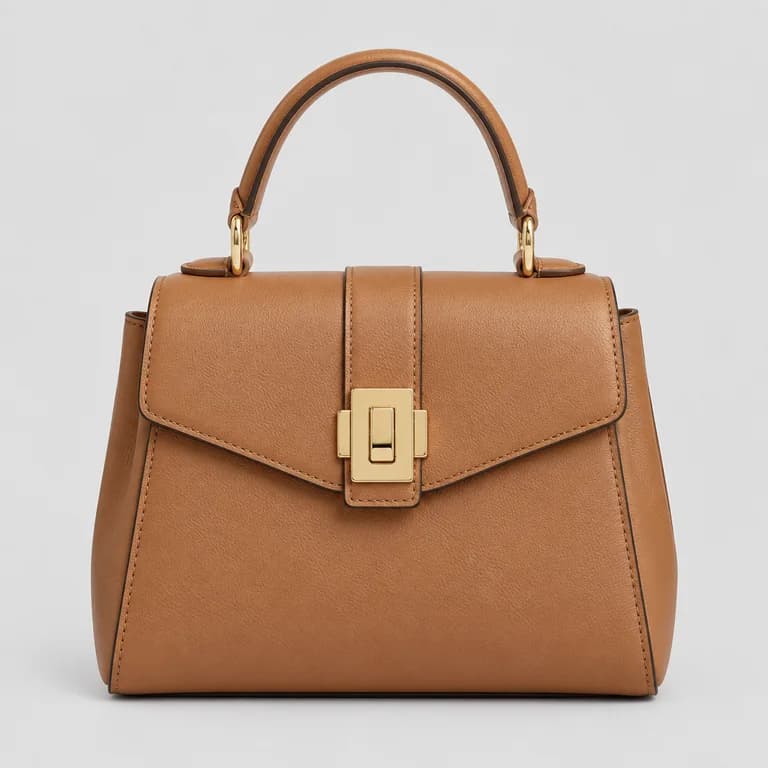
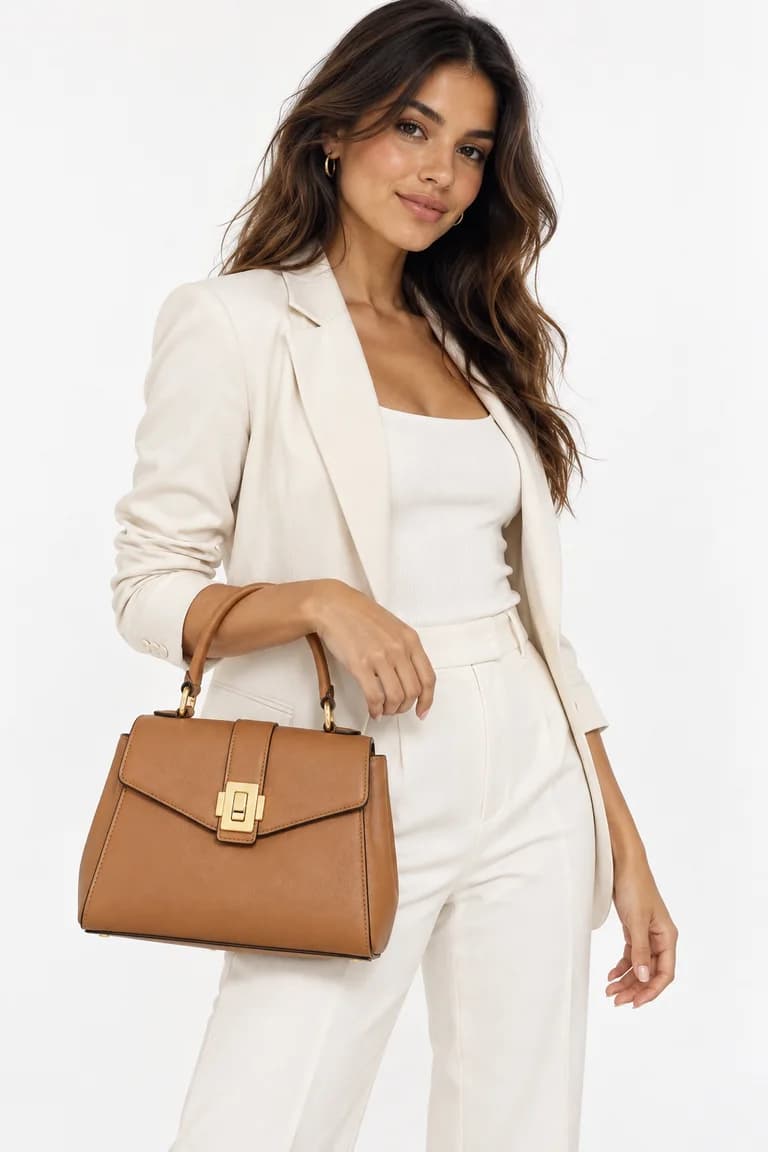
Treat any text or logo as suspect. If your brand name or a label appears in the image, compare it letter by letter. If it is wrong, re-run or choose a photo where it is not visible.
6. Hands, body and fit
Look at where the product meets the body: a hand holding a bag, a hand in a pocket, a cuff at the wrist, a waistband at the hips. Check the fingers, the grip on handles and straps, and anything that crosses in front of the garment. Fit matters too: an image that makes a garment look tighter or looser than it is sets the wrong expectation about size, so describe the fit in the listing.
7. Background and styling
Finally, look at everything that is not your product. In the four examples, the model, the other clothes (jeans, sandals, the cream suit), the pose and the background are all generated. Make sure nothing in the styling could be mistaken for part of what you sell; if a buyer could think the jeans come with the shirt, say clearly what is included.
Quick checklist
| Check | What to compare |
|---|---|
| Color | Main color in an evenly lit area; trims, stitching and buttons |
| Shape | Neckline, collar, sleeve and hem length, closures and pockets |
| Print scale | Motif size, spacing, colors and placement prints |
| Texture | Knit, rib, weave or grain, on the sleeves and hem as well as the chest |
| Hardware and logos | Shape, finish and position; any text, letter by letter |
| Hands and fit | Grip, fingers, and how tight or loose the garment looks |
| Background | Nothing generated could be mistaken for the product |
What to do when an image fails
- Re-run it. A different run can fix a detail; each Dress Model image costs 8 credits.
- Improve the input. A flat, evenly lit, front-facing product photo that shows the whole product leaves the AI less to guess.
- Leave it out. A photo that misrepresents the product does more harm than having one photo fewer.
Tools mentioned in this article
Try it with your own product photos
New accounts get 100 free credits, no card required: enough for 12 Dress Model images. Email signups verify their email before generating.
Related articles
Product photos
How to photograph clothes for AI model photos: light, wrinkles and framing
How to shoot garment photos that AI can turn into accurate on-model images: soft light, a plain background, no wrinkles, the full garment and a sharp file.
6 min read
Read articleProduct photos
Flat lay vs ghost mannequin vs hanger: which product photo works best for AI
Flat lay, ghost mannequin or hanger? What each clothing photo style shows an AI model generator, where each one fails, and which to use for each garment.
6 min read
Read articleProduct photos
How to create a consistent AI model for your brand
Build a recognisable AI model with Model Creator: write a brief, choose features, check every angle and keep the look consistent across your catalogue.
6 min read
Read article