
How to turn product photos into short videos with AI
Animate Photo and Motion Capture explained: which to use, how long a video takes, what it costs, sound vs no sound, and how to review the clip.
ModelPhotoAI6 min read
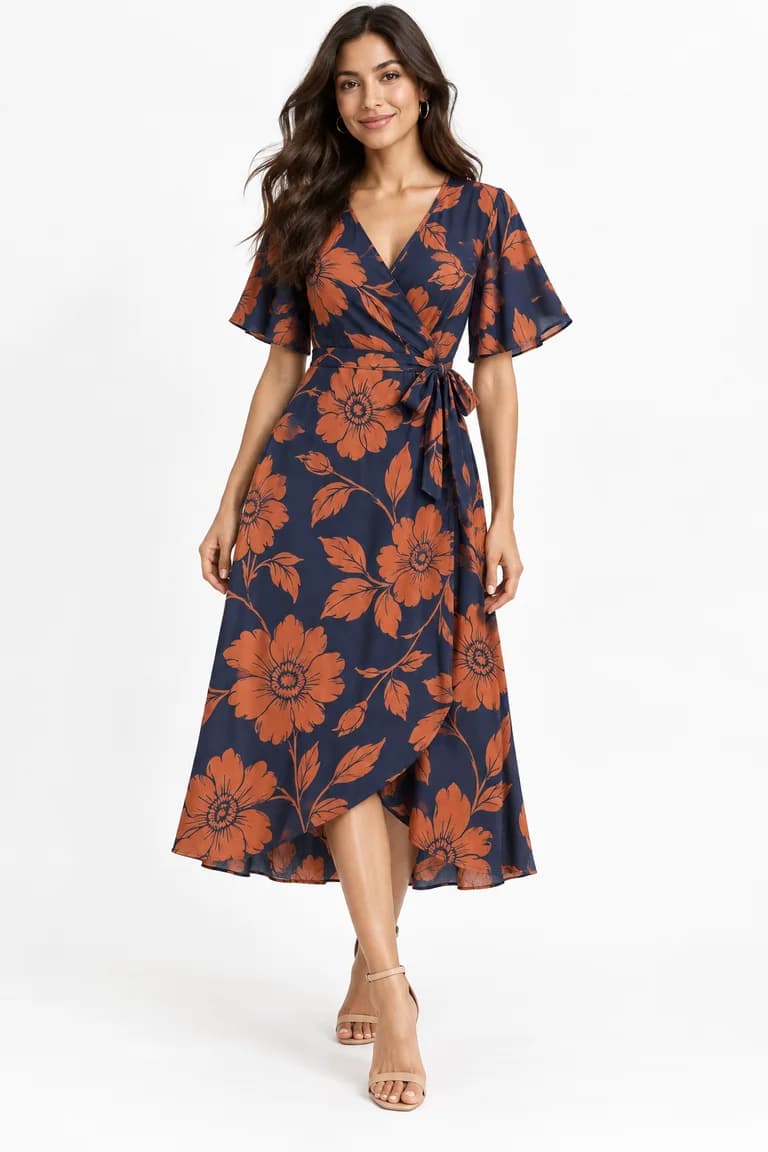
A still photo shows what a product looks like. A few seconds of movement can show how it behaves: how a skirt swings, how a knit drapes when someone turns, how a bag sits against the body. You don't need a video shoot to get that. If you already have a good on-model photo, you can animate it into a short clip.
ModelPhotoAI has two tools for this, Animate Photo and Motion Capture. This guide explains what each one does, how long a video takes, what it costs, when sound is worth paying for, and what to check before you publish a clip.
Two tools, two ways to add movement
Both tools start from a single photo. The difference is where the movement comes from.
| Animate Photo | Motion Capture | |
|---|---|---|
| Where the movement comes from | A text description you write | A reference video you choose or upload |
| Length | 5 or 10 s without sound; 4, 6 or 8 s with sound | Depends on the reference video |
| Cost | 10 credits per video without sound, 15 with sound (any duration) | 10 credits per video |
| Engine | Kling v2.6 Pro without sound; Veo 3.1 with sound | Kling motion control |
| Render time | Longer than a photo; runs in the background | Longer than a photo; runs in the background |
Use Animate Photo when a simple, describable movement is enough: a slow turn, a step forward, a breeze in the hair. Use Motion Capture when you want a specific movement that is hard to describe in words, such as a particular walk or a sequence of poses, and you have a clip that shows it.
Start from a photo that is already right
A video can only be as accurate as the photo it starts from. If the color, the print or the hardware is wrong in the photo, it will be wrong in every frame. Before animating, check the still against your product photo. Our guide on how to review AI product photos before publishing walks through color, shape, print scale, texture and hardware.
- Pick a photo where the whole product is visible. Anything cropped out of the frame has to be invented if it comes into view during the movement.
- Prefer a clean background. A busy scene gives the engine more things to move and more places for odd details to appear.
- You can upload any image, or pick one you already generated, including photos of a model you built in Model Creator.
Animate Photo: describing the movement
With Animate Photo you write a short description of how the image should move. Treat it like direction for a model on set: one clear action, at a pace you can picture.
- One movement per clip. “She turns slowly to her left and looks back at the camera” is easier to get right than a list of five actions in a few seconds.
- Movement that shows the product. For a dress, a turn or a few steps shows the drape. For a bag, a hand lifting it or the model shifting her weight keeps it in view. For a knit, a slow arm movement shows how the fabric folds.
- Say what should stay steady. If you want a fixed camera, say so. Fast camera moves and big gestures make it more likely that the product changes shape between frames.
- Calm beats dramatic. Subtle movement usually reads as more natural and keeps the garment closer to the original photo.
Sound or no sound
Animate Photo can render a silent clip (Kling v2.6 Pro, 5 or 10 seconds, 10 credits) or a clip with AI-generated sound (Veo 3.1, 4, 6 or 8 seconds, 15 credits whatever the duration). With sound on, you can optionally describe the audio you want, such as footsteps or soft background music.
Sound is worth the extra credits when it adds something a viewer will actually hear: a clip for a page or a post where people will play it with the volume up, or a scene where ambient sound makes it feel real. If the clip will mostly be seen as a looping visual, or you plan to add your own music in an editor, the silent version is the simpler choice. Think about where the video will play before you decide.
Motion Capture: borrowing movement from a reference video
Motion Capture applies the movement from a reference video to your photo. The person in your photo performs the motion from the clip, so the result depends heavily on the clip you choose.
- Choose a reference where one person is clearly visible from start to finish, with the movement you want and little else going on.
- Match the framing: if your photo is full body, a full-body reference gives the engine a clearer guide than a close-up.
- Keep the movement compatible with the product. Fast spins or arms crossing in front of the garment hide it and give it more chances to change.
- Only use clips you have the right to use, such as footage you recorded yourself.
How long it takes
Videos take longer than photos. A Dress Model image typically takes 20 to 60 seconds; a video takes noticeably longer with either tool. Jobs run in the background, so you can start one and keep working on other images while it renders, then come back to review it. Plan for that when you have a deadline: render the clips you need before the day you publish, not an hour before.
What it costs and what is refunded
Every new account gets 100 free credits, with no card. That is enough for up to 10 silent Animate Photo clips, if every job succeeds and you keep every result. If a video job fails, its credits are refunded automatically. A clip that renders but that you don't like is not refunded, and rendering it again uses credits again. Full details are on the pricing page. Paid plans are bought by email after logging in.
Review the clip before you publish
Movement is where generated video drifts. A product that looks right in the first frame can change as the model moves. Watch each clip more than once, and pause it.
- Compare the first frame, a middle frame and the last frame with your product photo: color, print, length and closures.
- Watch the hands and anything that crosses the product, such as arms, hair or a bag strap.
- Look for details that appear or disappear: buttons, pockets, logos and trims.
- Check that the clip does not suggest something the product doesn't do, such as a fabric that looks stretchier or shinier than it is.
For more on the video tools, including example uses for online stores, see the AI fashion video page.
Tools mentioned in this article
Try it with your own product photos
New accounts get 100 free credits, no card required: enough for 12 Dress Model images. Email signups verify their email before generating.
Related articles
Working with AI
A weekly content routine for a small fashion brand using AI photos
Plan, batch, review and publish AI product photos in one week: a realistic routine for a small clothing brand, with a credit budget and quality checks.
6 min read
Read articleWorking with AI
What AI fashion photography can and cannot do today
An honest look at AI on-model photos: what they handle well, where they drift (prints, logos, hands, size) and which garments content filters block.
6 min read
Read articleWorking with AI
From product photo to on-model image: four real AI runs, step by step
Four real Dress Model runs, from product photo to AI on-model image: settings, measured times, credits, and what was kept or changed in each result.
6 min read
Read article