
A product photo workflow for small clothing brands selling online
A step-by-step workflow for small fashion brands: plan the shot list, take a clean product photo, add on-model images with AI, review them and publish.
ModelPhotoAI6 min read
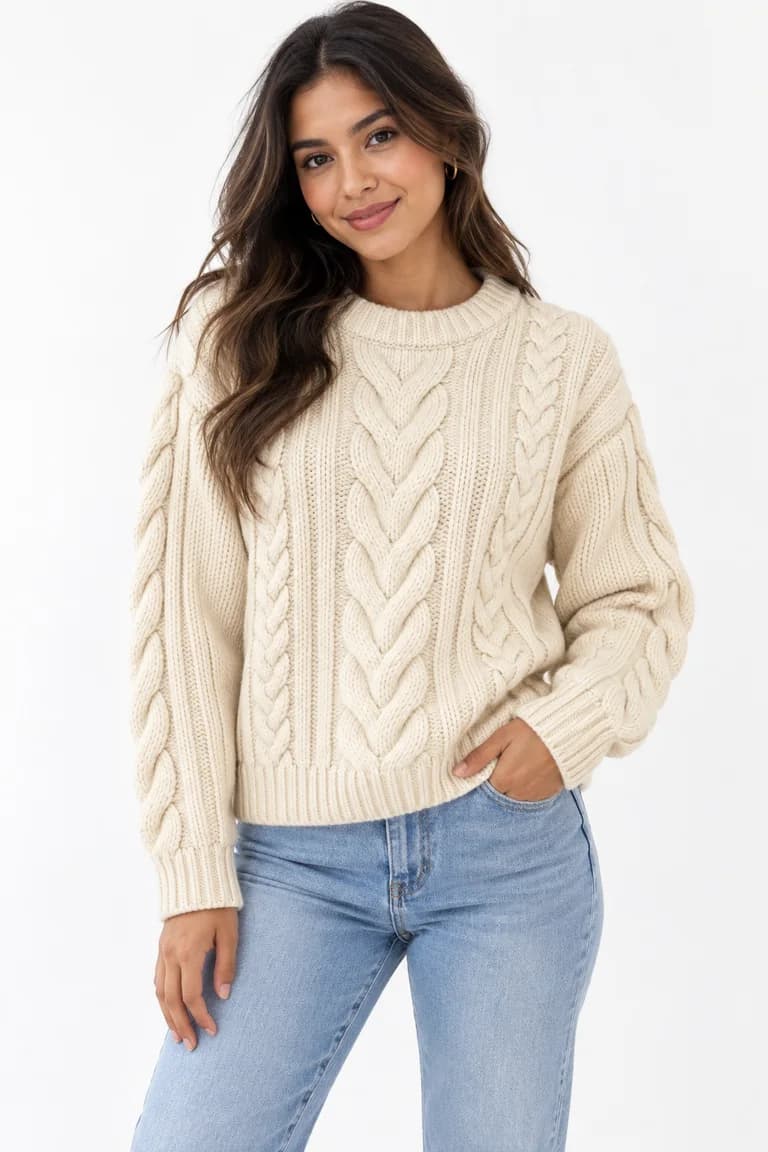
A small clothing brand usually has the same problem every season: new products arrive, the store needs photos now, and there is no budget for a full shoot for every item. The result is often a catalog where every listing looks different, some photos are blurry, and buyers cannot tell how a garment fits.
This article is a practical workflow you can repeat with a phone, a window and an AI tool for the on-model shots. It is written for small brands and one-person shops. It does not replace a professional shoot when you can afford one; it gives you a consistent, honest baseline when you cannot.
1. Decide what each listing needs
Before you take a single photo, write a short shot list that every product follows. Consistency matters more than any individual image: a grid where every product is framed the same way looks more trustworthy and is easier to compare.
- Main photo: the product alone, front view, whole garment visible, plain background.
- Back view: especially for anything with a detail on the back (closures, cutouts, prints).
- Detail: a close-up of fabric, texture, label or hardware.
- On-model: one or two images that show fit, length and how to wear it.
Before you settle on the list, look at where you sell (your own store builder, marketplaces, social networks). Platforms may have their own guidelines (for example on backgrounds, sizes or the main image), and they change; check each one's current guidelines and build your shot list around the strictest one you use.
2. Take a clean product photo
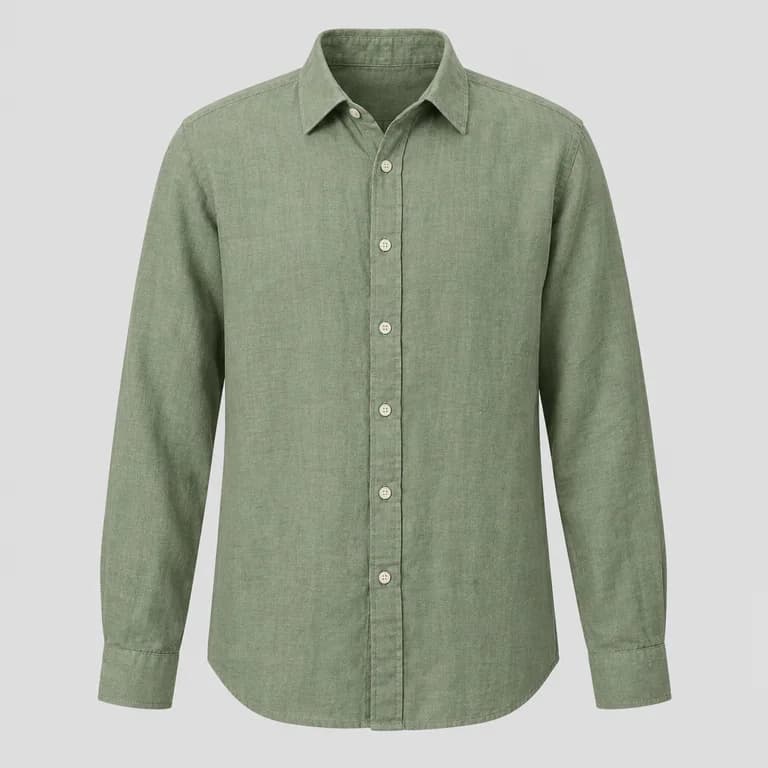
Everything later depends on this photo. It is what your buyers will compare against, and it is the input for any AI on-model image. A clean, evenly lit product photo leaves the AI less to guess.
- Steam or iron the garment. Wrinkles read as part of the fabric.
- Use soft daylight from a window, without direct sun. Turn off warm room lights so colors do not mix.
- Lay the garment flat or hang it in front of a plain, light wall or board. Show it whole, with nothing cut off at the edges.
- Shoot straight on, with the phone parallel to the garment, so the proportions do not distort.
- Check color by holding the real garment next to your screen in daylight. If they don't match, fix the light, not the photo.
3. Name and organize your files
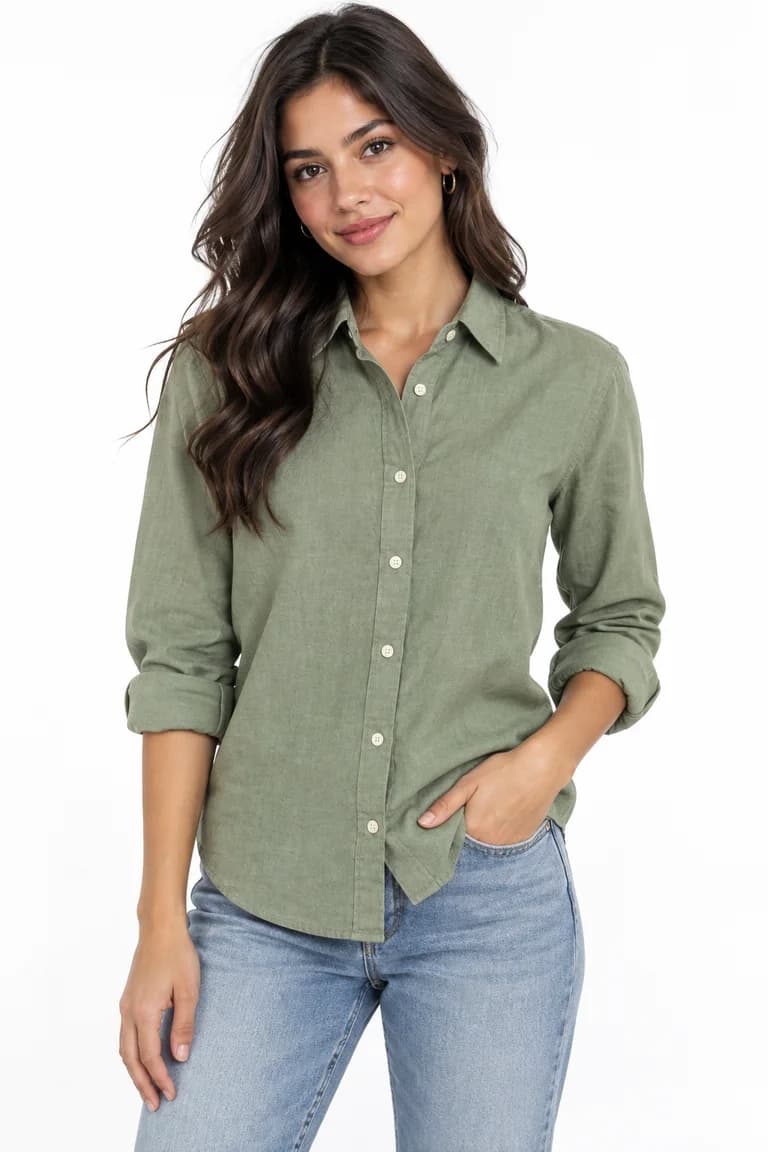
A simple naming rule saves hours later, when you need to find the back view of a product from two seasons ago. Use something like SKU-color-view (for example, 1042-sage-front). Keep the original product photos in one folder and the generated images in another, so you always know which file is the real product.
4. Add on-model images with AI
With ModelPhotoAI's Dress Model, you upload the product photo and get images of an AI-generated model wearing the garment. Each image costs 8 credits and typically takes 20–60 seconds. Outputs are 1024x1536 (portrait), 1536x1024 (landscape) or 1024x1024 (square); pick one format for your store and keep it across the catalog.
To plan a batch, multiply products by images. A drop of 10 products with 2 on-model images each is 20 images, or 160 credits, before any re-runs. New accounts get 100 free credits with no card, enough for up to 12 Dress Model images if every attempt is one you keep. That is a fair way to test the workflow on a few products before you commit to it.
5. Review every image against the product
This is the step small brands skip and later regret. Put each generated image next to the product photo and check color, shape and length, print scale, texture, hardware and anything the AI added. We wrote a full checklist in how to review AI product photos before you publish them. If an image misrepresents the product, re-run it or leave it out.
6. Publish with honest details
- Crop every image to the same framing and format before uploading.
- Write alt text that describes the product (color, garment type, key detail), not the file name.
- Give real measurements and the size the garment is shown in, if relevant. Photos, real or generated, cannot show size precisely.
- Say clearly what is included, so nobody thinks the jeans in an on-model shot come with the shirt.
- Check the platform's current guidelines on generated or edited images before you publish there.
7. Reuse the work for social media
The same product photos can feed your social content. InstaShoot generates lifestyle images for social media at 10 credits per image, and Animate Photo turns a photo into a video. Social posts are where on-model and lifestyle images tend to fit best; for when to use each kind of photo, see on-model vs flat product photos.
The workflow at a glance
| Step | What to do | Watch out for |
|---|---|---|
| Shot list | Same views for every product | Each platform's current image guidelines |
| Product photo | Steamed garment, window light, plain background, straight on | Color that does not match the real garment |
| Files | SKU-color-view names, originals kept apart | Mixing generated images with real photos |
| On-model | Dress Model, 8 credits per image | Blocked categories, redrawn prints, guessed sizes |
| Review | Compare every image with the product photo | Publishing an image that changes the product |
| Publish | Same framing, alt text, real measurements | Implying that styling items are included |
Tools mentioned in this article
Try it with your own product photos
New accounts get 100 free credits, no card required: enough for 12 Dress Model images. Email signups verify their email before generating.
Related articles
Selling online
AI product photos: rights, consent and privacy for online stores
What a brand should check before publishing AI product photos: who owns the inputs, consent for real faces, honest images and Argentina's data law basics.
6 min read
Read articleSelling online
AI product photo costs: how to budget a catalogue with credits
Worked examples for budgeting AI on-model photos and videos with credits, plus how to compare the result with a photoshoot quote line by line.
6 min read
Read article